 Talavine
Give Dot your Talavine information.
Connect the profile you already use, then ask Dot to find answers, follow the history of a project, or carry out a request.
You'll need Talavine running on the computer that holds your profile, a ChatGPT account with Dot, and an internet connection.
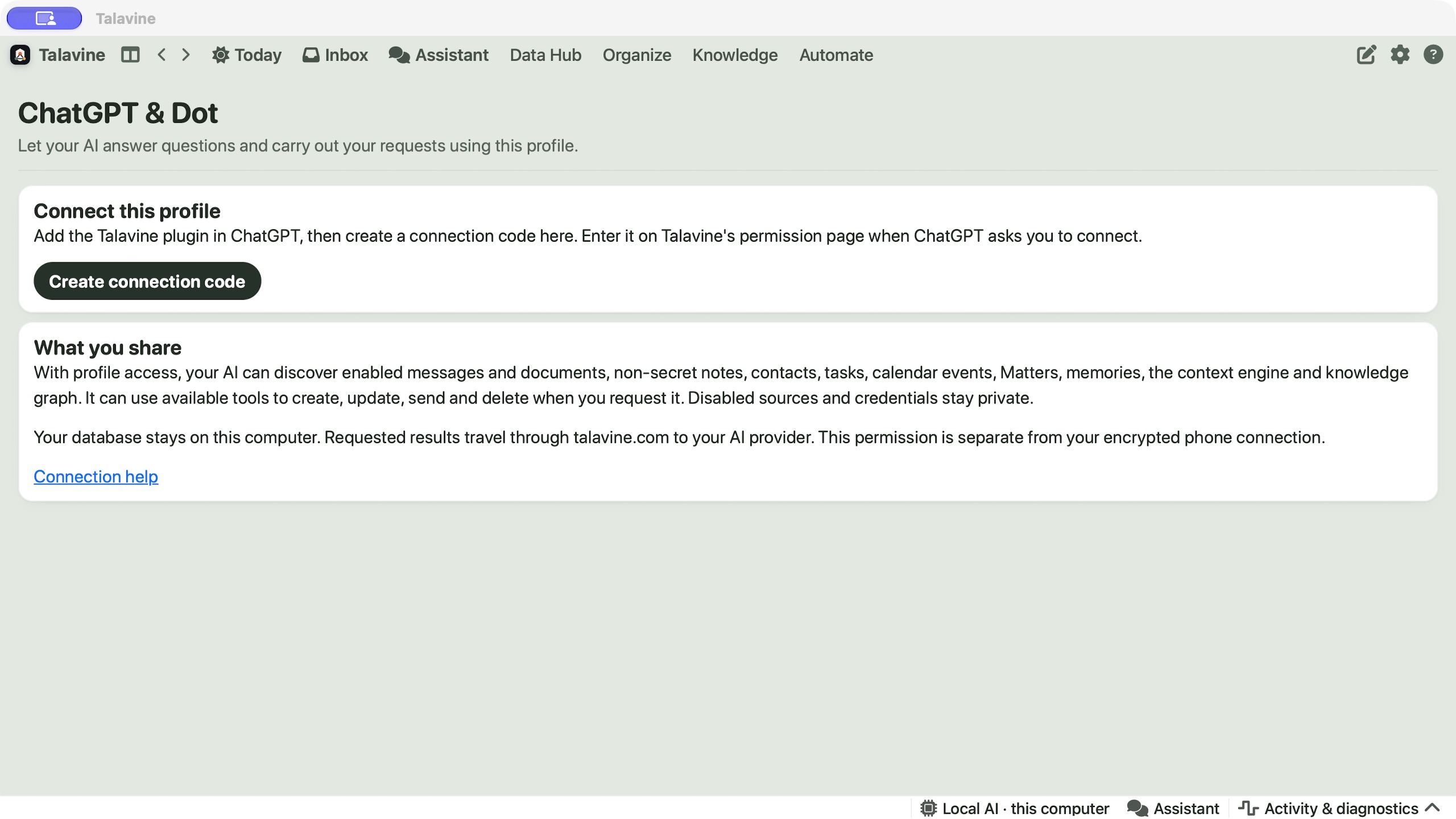
Open the connection panel in Talavine
Open the profile you want Dot to use. Go to Settings → ChatGPT & Dot. You can also open Talavine's Assistant and ask:
Set up Dot.
The assistant opens the same connection panel and prepares your code. If you're setting up by hand, choose Create connection code. Keep the panel open so you can copy the code when ChatGPT asks for it.
Add Talavine in ChatGPT
Open ChatGPT's Plugins page. Choose Add → Create custom MCP server. Give it the name Talavine, enter this server URL, and keep Authentication set to OAuth:
https://talavine.com/mcp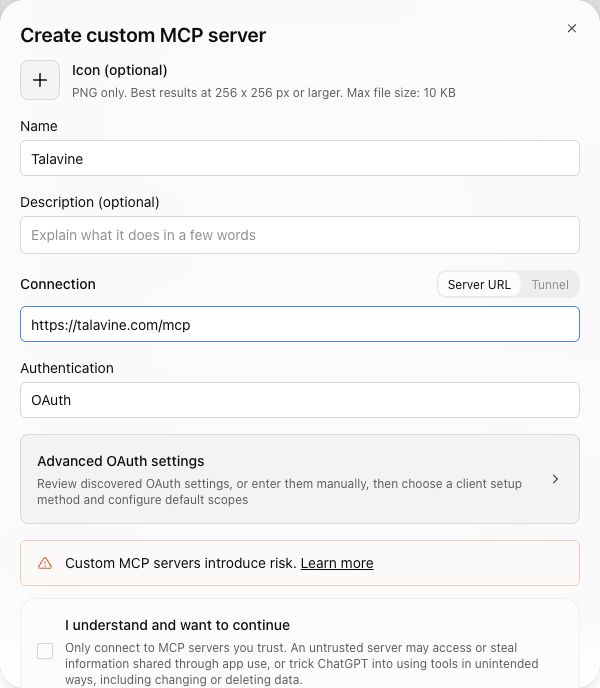
Open Advanced OAuth settings and let discovery finish. The registration method should be Client Identifier Metadata Document (CIMD). Keep both context.read and profile.access selected. You don't need to enter a client ID or client secret.
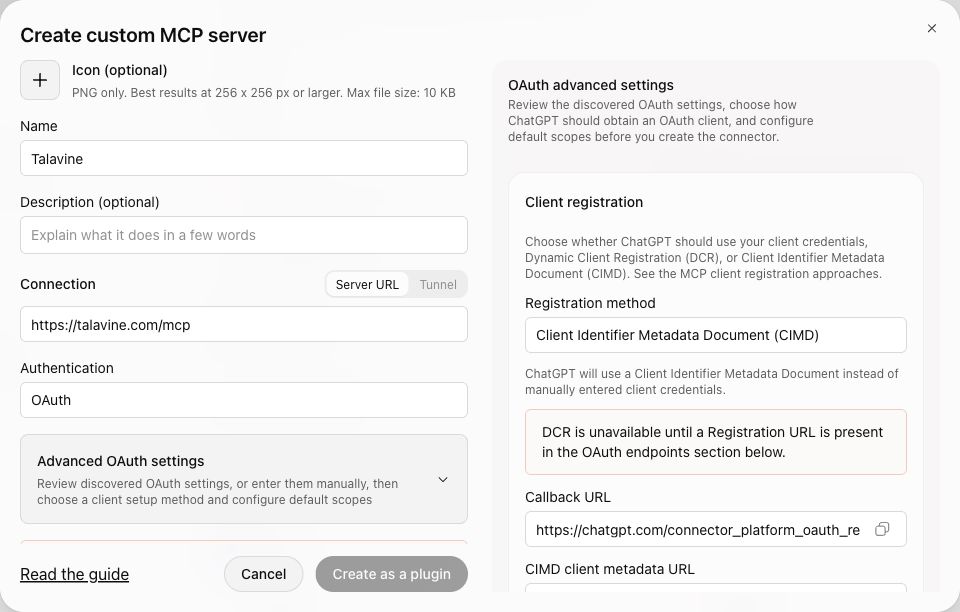
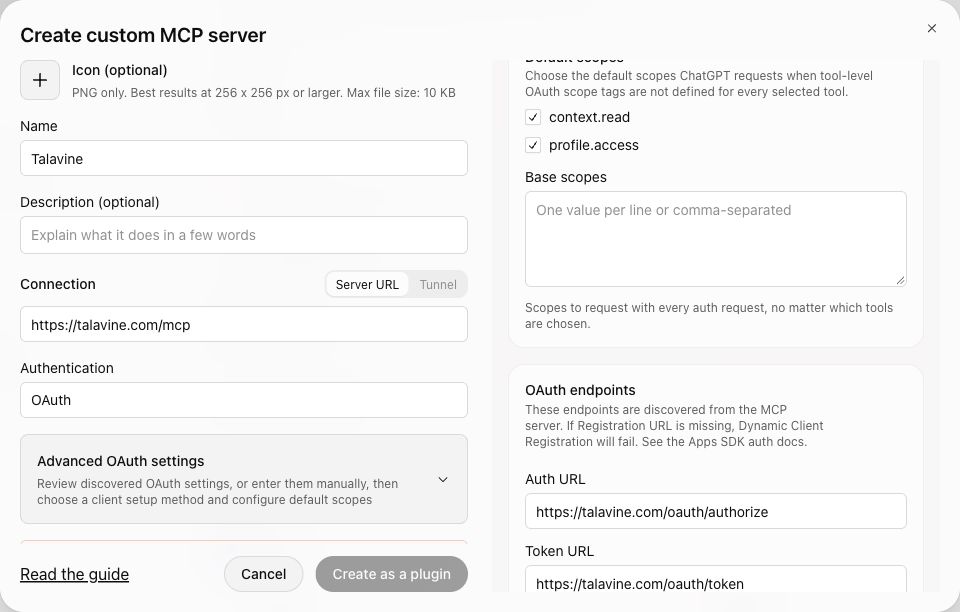
Review ChatGPT's connection notice, select I understand and want to continue, then choose Create as a plugin. Follow the connection request to Talavine's permission page.
If your account doesn't offer custom MCP connections, this route isn't available yet. Contact us for help. Once the public listing is approved, you'll be able to install Talavine from the directory instead of entering a server URL.
Approve the profile you want to connect
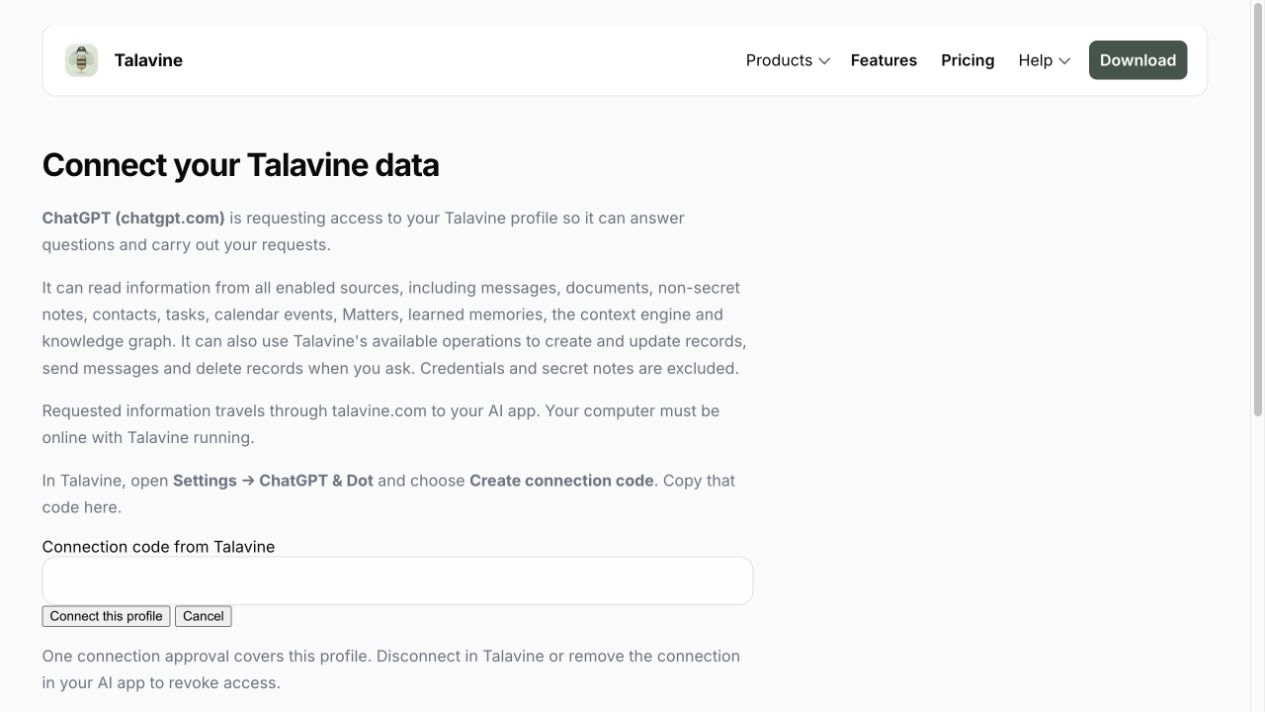
On the talavine.com permission page, paste the code from Talavine into Connection code from Talavine. Choose Connect this profile, then return to ChatGPT.
Back in Talavine, the panel should show Connected and access to the profile's information and requested actions. That one approval covers the connection; you don't need to approve each source separately.
Your code is private and expires after a short time. If it expires, create a new one in Talavine. Don't paste it into an assistant conversation.
Ask Dot something useful
Open your Dot using the same ChatGPT account. Dot can use the supported plugins installed and enabled for that account, including your connected Talavine plugin. See OpenAI's app connection guide.
Check what it can see and do
Use Talavine to list my available information sources and the actions you can perform. Tell me which sources are still being indexed or are unavailable.
Try a question across your information
Replace the project name with one in your own records:
Use Talavine's context engine and knowledge graph to explain what changed on [project name], who is involved, and what I still need to follow up on. Compare the emails, notes and calendar information you find, link the sources, and tell me where information is missing.
Ask for a small action
Create a task in Talavine called “Try Dot with Talavine,” then read it back to confirm it was saved.
Keep Talavine running and your computer online while Dot uses this connection. Answers depend on the sources you've enabled and indexed. Dot should tell you when coverage is incomplete.
If something doesn't connect
- Talavine is offline
- Open Talavine on the computer holding the connected profile and check its internet connection. Retry your request in Dot.
- The code has expired or was already used
- Choose Create connection code again and use the new code in the permission form.
- Connected, but only read-only access
- In Talavine's ChatGPT & Dot panel, choose Enable context and actions. Reconnect the plugin in ChatGPT and approve profile access once.
- Dot can't find Talavine
- Check that the plugin is installed and connected in the same ChatGPT account you're using for Dot. Ask Dot explicitly to use Talavine.
- Some information is missing
- Check that the relevant source is enabled and has finished syncing and indexing in Talavine. Ask Dot to explain what it searched and what it couldn't access.
Your data and your choices
Your database stays on your computer. Requested results travel through talavine.com to your AI provider. Profile access includes enabled sources, the context engine, knowledge graph, and available actions you request. Credentials, secret notes and disabled sources stay private.
You can disconnect in Settings → ChatGPT & Dot or revoke the connection in ChatGPT. This connection uses separate permissions from Talavine's encrypted phone connection.