Connect Outlook, Hotmail, or Microsoft 365 in one click
In Talavine, open Add Account, choose Outlook / Hotmail / Microsoft, and
click Sign in with Microsoft. Microsoft's own sign-in page opens in your browser. Approve
access to your mail, calendar, and contacts, and you're back in Talavine with the account connected. There's
no app to register and nothing to paste.
What you approve
Your mail, calendar, and contacts, kept on your computer
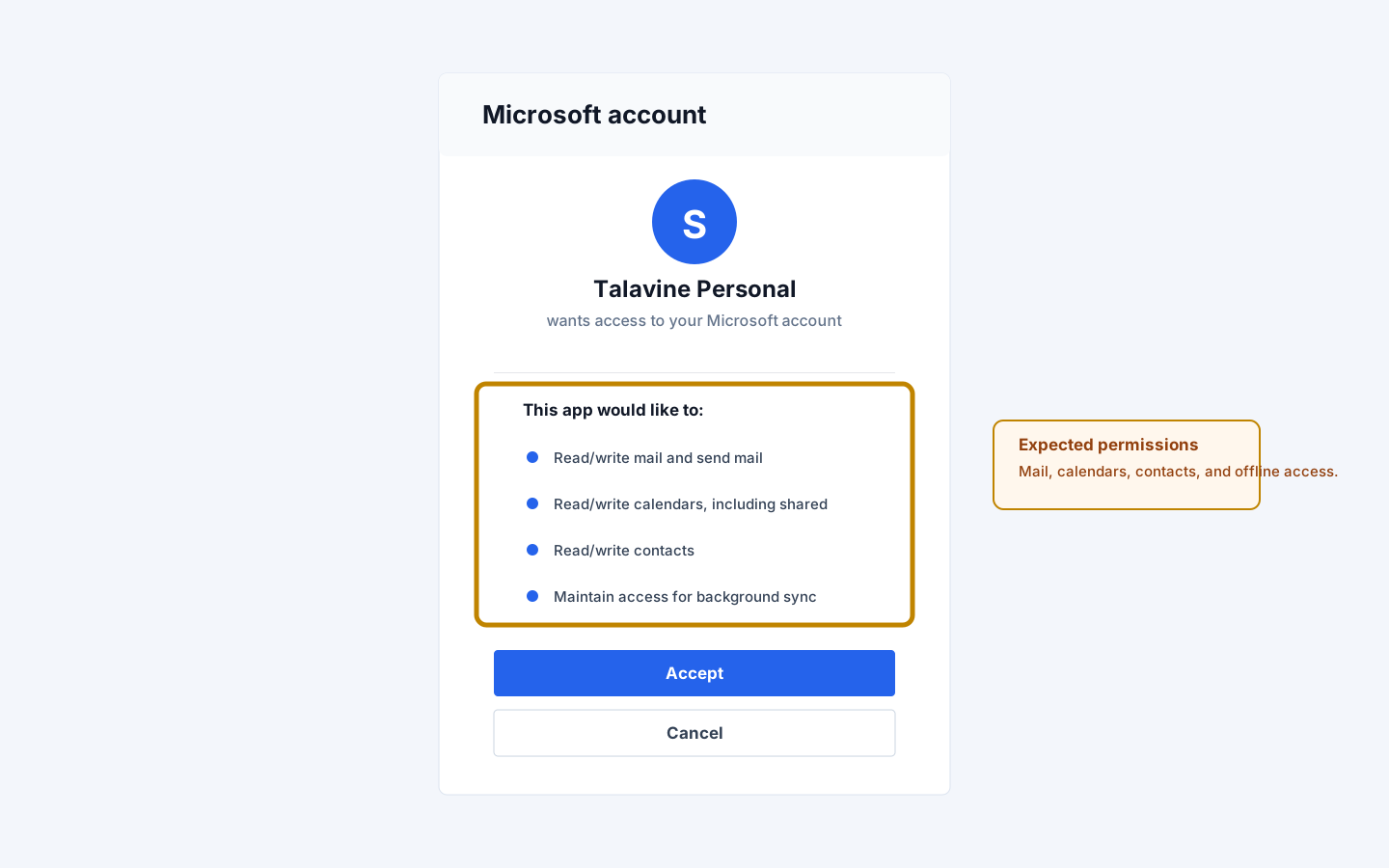
Microsoft asks you to let Talavine read and send mail, read and update your calendars (including ones
shared with you), read and update contacts, and stay signed in so it can sync in the background.
Microsoft shows SwarmMarshal LLC, the company behind Talavine, as a verified publisher. The sign-in
Microsoft issues is stored encrypted on your computer, and no Talavine server sits in between.
Work or school accounts
If your organization asks for IT approval
Some Microsoft 365 organizations let only IT approve new apps. Talavine then says so in plain words and
gives you an approval link to send to your IT administrator. After they approve, Microsoft shows them a
Talavine confirmation page, and you click Try again after approval. If your
organization only allows its own app registrations, use the advanced setup below.
Advanced
Use your own Microsoft Entra app registration
For organizations that only allow their own app registrations. Plan on about ten minutes; you only do it
once per Microsoft account, and Talavine's guided setup opens each page with you.
Step 1
Open Microsoft Entra
Sign in at entra.microsoft.com
with the Microsoft account you want to connect. A personal @outlook.com,
@hotmail.com, or @live.com address works, and so does a Microsoft 365 work
account. Microsoft Entra is free for this use; you'll land in the Entra admin center once you sign in.
Step 2
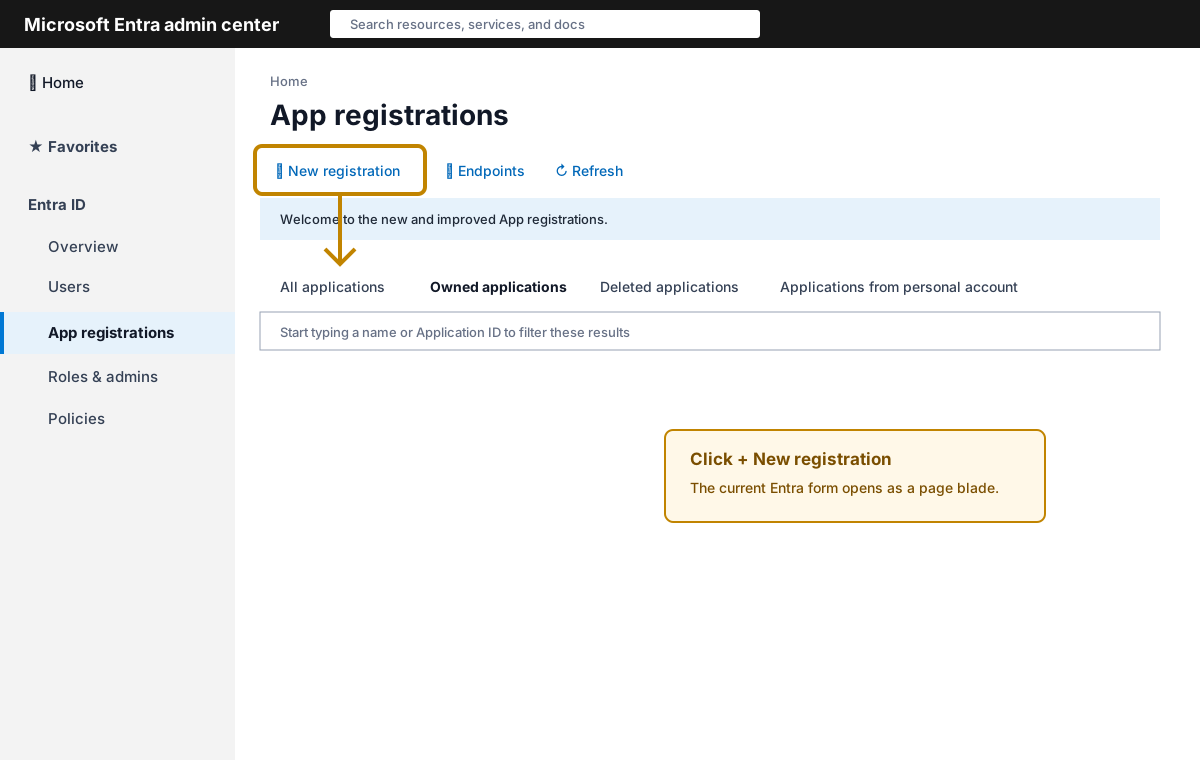
Open App registrations
Microsoft Entra · App registrations
In the top search bar type App registrations and click the matching service.
Alternatively open this direct link.
Click + New registration at the top of the list.
Step 3
Register the application
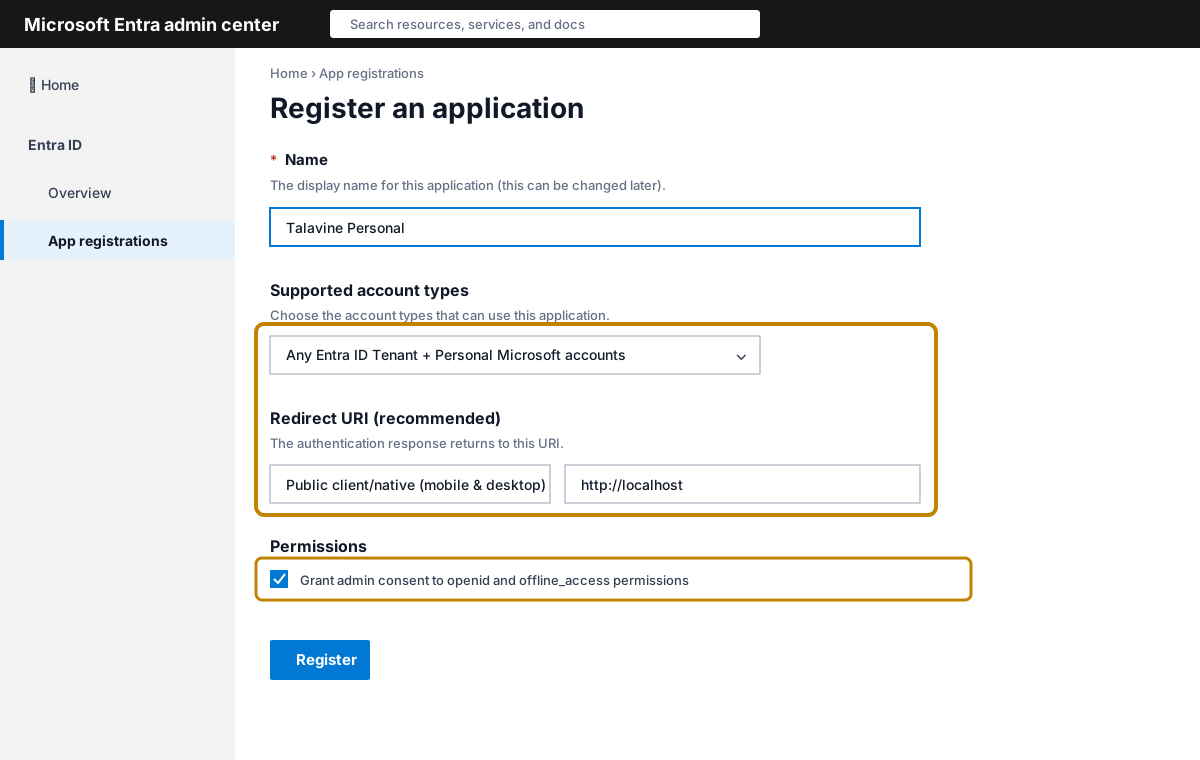
Register an application
Give it a name you'll recognize (Talavine Personal is fine). For
Supported account types choose
Any Entra ID tenant + Personal Microsoft accounts; that's
the option that works for both Outlook.com and Microsoft 365. Under
Redirect URI pick Public client/native (mobile & desktop)
from the dropdown and enter http://localhost. If the form shows
Grant admin consent to openid and offline_access permissions, leave its default
selection unchanged. Click Register.
Step 4
Allow the public client flow
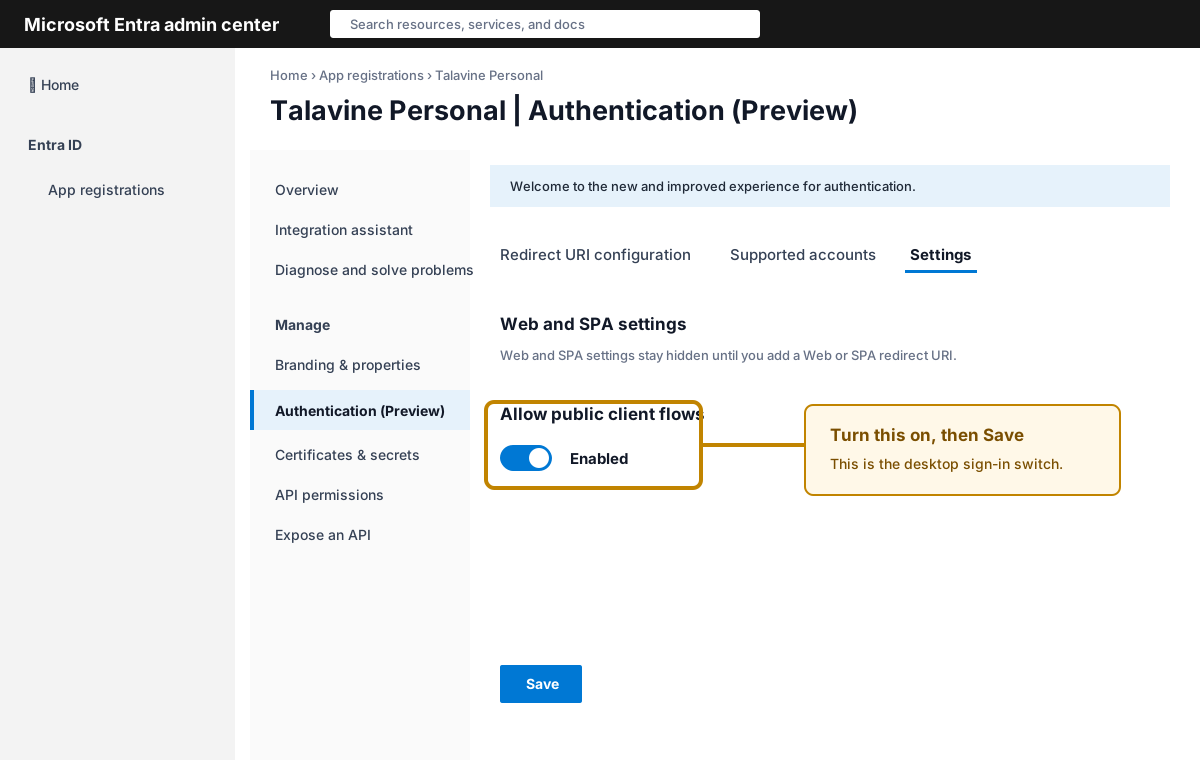
Authentication (Preview) · Settings
On the new app's page, open Authentication from the left menu. On the
Settings tab, find Allow public client flows and set it to
Enabled. In older portal layouts this same switch may appear under
Advanced settings as Yes. Click Save at the top.
This tells Microsoft it's okay for Talavine to sign in without storing a client secret, which
is the right setup for a desktop app.
Step 5
Copy the Application (client) ID
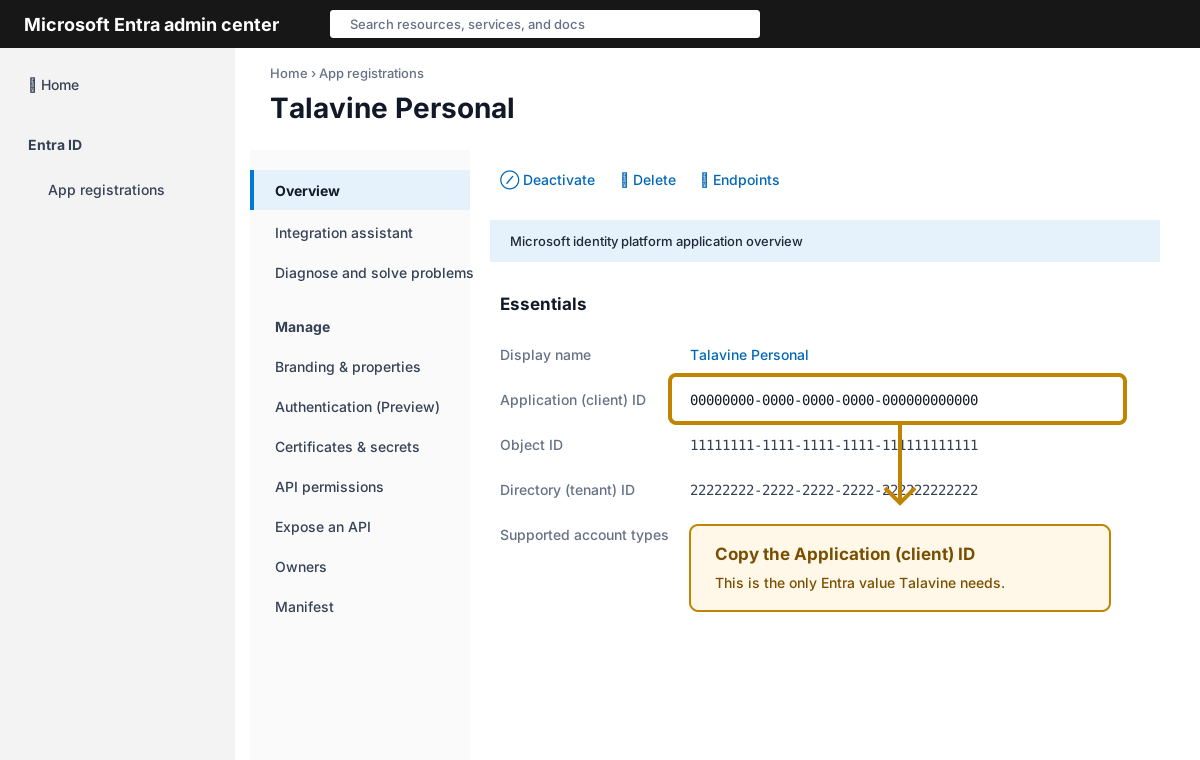
Overview · Application (client) ID
Click Overview in the left menu. You'll see a field called
Application (client) ID with a UUID next to it. Copy that value. You don't
need to create a client secret, and you don't need to pre-configure API permissions. Talavine
requests delegated consent at sign-in time for mail read/write, mail send, calendar read/write
including shared calendars, contacts read/write, and offline access so it can refresh tokens in the
background.
Step 6
Paste into Talavine
Permissions · Mail + Calendar + Contacts
In Talavine open Add Account, choose Email, then choose
Outlook / Hotmail / Microsoft. Paste the Client ID into the wizard or run the
guided Microsoft setup and let it fill the value for you. Click Sign in with Microsoft;
your browser will open Microsoft's sign-in page. Approve the delegated permissions and you'll be
returned to Talavine with the account linked.
Troubleshooting
Own app registration: "AADSTS7000218: The request body must contain the following parameter: client_secret".Allow public client flows is still off. Go back to Step 4, set it to
Enabled or Yes, and click Save.
Own app registration: "AADSTS50011: The reply URL specified in the request does not match".
The redirect URI isn't registered correctly. Re-open the app's Authentication
page and make sure http://localhost appears under Mobile and desktop
applications (not Web). Add it there and save.
Work or school account says the admin must approve. Many Microsoft 365
organizations let only IT approve apps that read mail. Send your administrator the approval link
Talavine shows. If you use your own registration, ask them to grant delegated consent for mail
read/write, mail send, calendar read/write, contacts read/write, and offline access, or register the
app inside the organization instead of on a personal account.
Sign-in says IMAP is disabled. Microsoft 365 disables IMAP for some mailbox
policies. An admin has to enable IMAP access on the mailbox; the personal Outlook.com
service has it on by default.
Security notes
An Application (client) ID only identifies an app registration to Microsoft, whether it's Talavine's
or your own. On its own it can't read any mailbox; access starts only after you sign in and approve
specific permissions. Talavine encrypts the refresh token Microsoft issues, and the ID it belongs to,
on your computer.
You can revoke access at any time at
account.live.com/consent/Manage
for personal accounts, or
myaccount.microsoft.com
for work accounts. Removing the account in Talavine clears its tokens from this computer, and if you
use your own registration, deleting it cuts off every session immediately.
 Talavine